
Install, first run, and the stalls that waste a day
Numbered because these are sequences. Common complaints this page answers: high memory, indexing that never ends, antivirus chewing builds, and a first-run wizard that feels crowded for new Java developers.
Fix a Spring dependency injection error
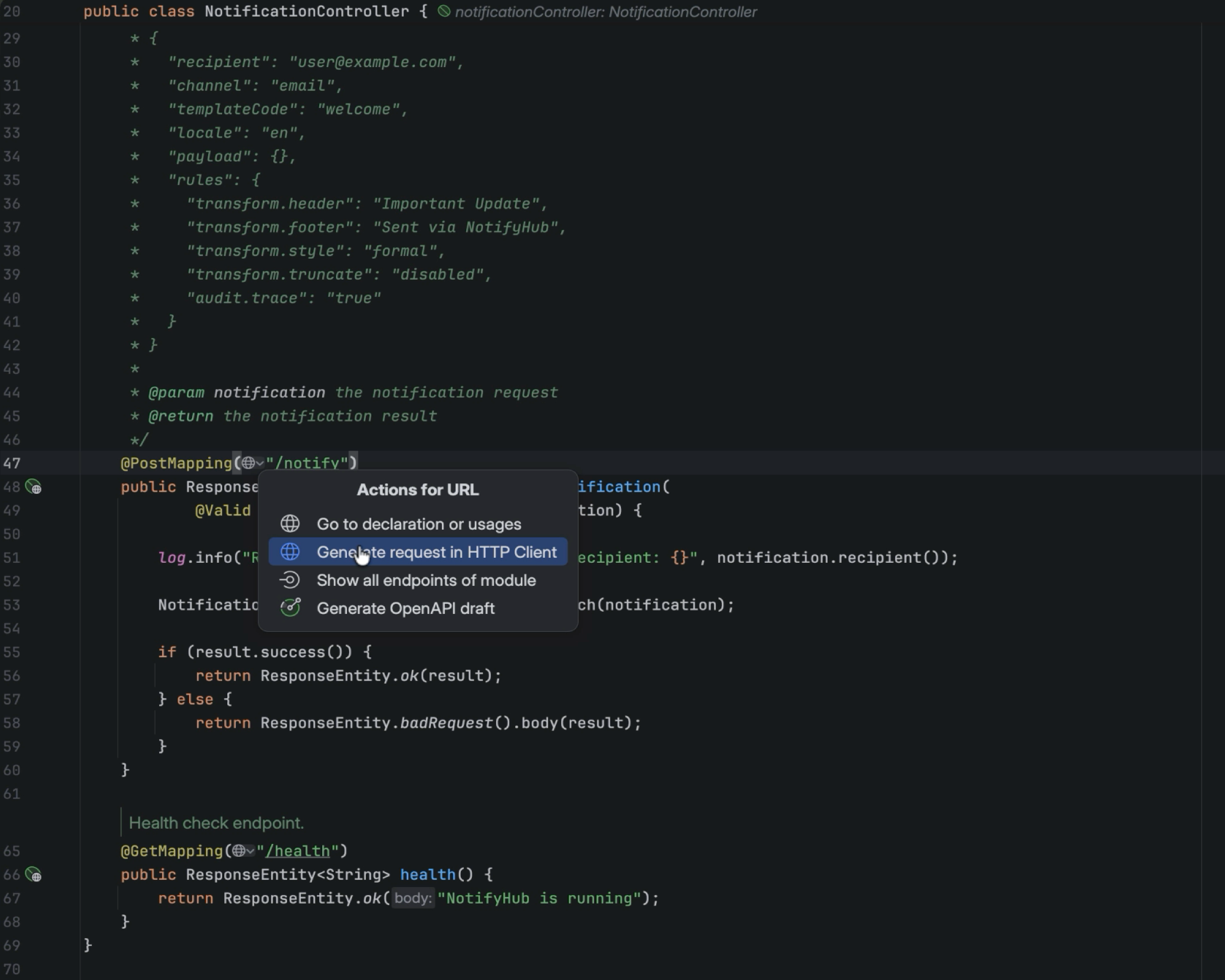
Run the app, jump to the failed bean, apply the IDE quick-fix, pick a Qualifier, and rerun. This is the same sequence the 2026.2 Spring preview walks through.
- 1.Start the Spring service from the run widget.
- 2.Open the error and the suggested inject fix.
- 3.Choose the bean, then rerun until the mapping responds.
1. Install on Windows
- 1.
Confirm Windows 10 or 11, 4 cores, 8 GB RAM, and 10 GB free. ARM64 machines should take the ARM installer, not the x64 EXE.
- 2.
Open the download IntelliJ IDEA 2026.2.3 desk and pick the Windows build. Leave the hash as a placeholder until a real URL is added.
- 3.
Run the EXE. Optional wizard items: desktop shortcut, add launchers to PATH, "Open Folder as Project", file associations.
- 4.
Toolbox is the supported way to keep several versions, including EAP. Snap on Ubuntu works but JetBrains notes extra friction for some JavaScript debug and file operations.
2. First run and JDK
You do not install Java to start the IDE. JBR 21 is inside the package. You do install a JDK to compile. The New Project wizard in current builds can target recent OpenJDK builds, including the OpenJDK 26 label shown in product captures.
- 1.
Launch from the Start menu or bin/idea64.exe.
- 2.
Sign in to a JetBrains Account if you want the Ultimate trial to activate automatically.
- 3.
Add a JDK under Project Structure. Do not replace the bundled JBR. Modified JREs are unsupported.
- 4.
Import Maven or Gradle and wait for the first index. Do not copy a tarball over an old Linux install directory.
Shortcuts: Ctrl+Alt+S settings · Ctrl+Shift+A find action
3. Indexing freezes
2026.2 listed 140 freeze or performance fixes. 2026.2.3 removed more freeze causes and repaired Maven window population. If a project still hangs:
- 1.
Close extra projects. One window per large tree is calmer on 8 GB machines.
- 2.
Disable third-party plugins. Softonic and forum threads still blame extras more often than the core IDE.
- 3.
Exclude node_modules, build outputs, and generated sources from the project.
- 4.
Do not raise the heap without a reason. Older JetBrains notes warn that oversized Xmx can add GC pauses.
4. Antivirus exclusions
Windows Defender can pause every class file the compiler writes. The IDE can offer exclusions from 2019.2 onward. Other scanners need a manual list. Kaspersky has flagged plugin JARs as generic trojans. That is a known false-positive class, not a reason to download a random "cracked" build.
- 1.
Exclude the installation directory.
- 2.
Exclude config, system, caches, logs, and plugins folders.
- 3.
Exclude the project root and the Gradle user cache.
- 4.
Allow idea64.exe and the bundled PowerShell probe. Do not disable the whole scanner.
Keep real-time protection on. Only carve out the paths the IDE writes all day.
5. New UI and Compact mode
Window header widgets cover the project, VCS branch, and run configuration. Tool window bars use large icons. Breakpoints sit on line numbers by default. Navigation bar moved to the status bar. Compact mode shrinks paddings for small laptops.
View | Appearance | Compact Mode, or Ctrl+Alt+S then Appearance.
6. Repair caches
- 1.
File | Invalidate Caches. Keep the "clear file system cache" box if indexes look corrupt.
- 2.
Restart and let the project re-index once. Do not cancel halfway on a large Gradle tree.
- 3.
If Maven stays empty after 2026.2.3, reopen the project. That exact bug is listed as fixed.
Still blocked? Read the IntelliJ IDEA FAQ on memory and Windows 11, then the security checklist.